Account and security
Roastgate controls your web server, and its container is privileged with pid: host: whoever controls Roastgate is, in practice, root on the host. Protect it accordingly.
Password
Use a long, unique password. It is changed from Settings → Change the password (the current password is required).
Changing the password ends every open session, on every device, within 30 seconds. It is also the answer to a stolen session.
Forgot it? See Reset the password.
Two-factor authentication
In Settings → Two-factor authentication, click Set up two-factor authentication.
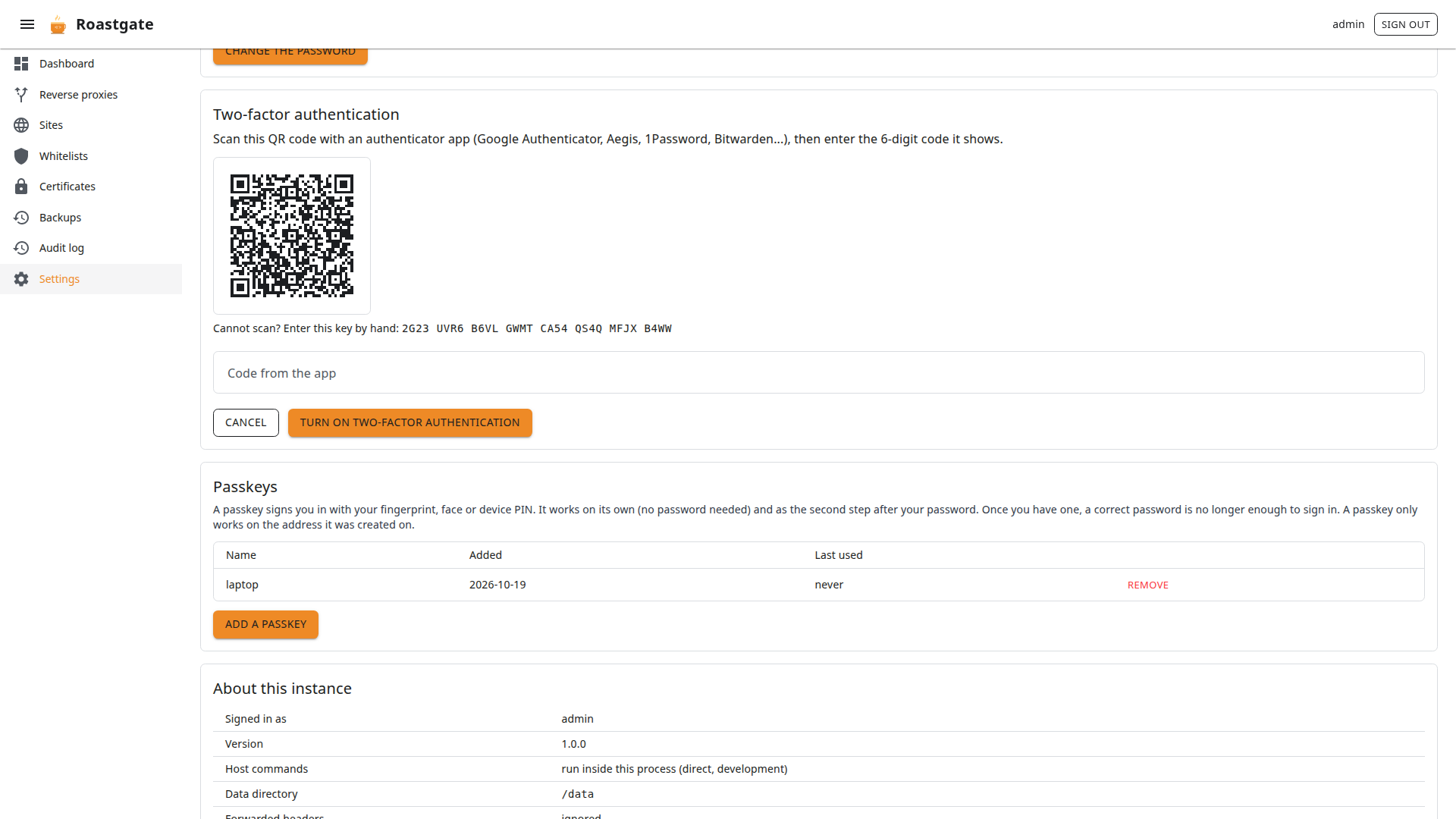
- Scan the QR code with an authenticator app (Aegis, Google Authenticator, 1Password, Bitwarden…). Cannot scan? Type the key shown below it.
- Enter the 6-digit code shown by the app and click Turn on two-factor authentication.
- Save the ten recovery codes now: they are shown only once. Each one signs you in once if you lose your phone.
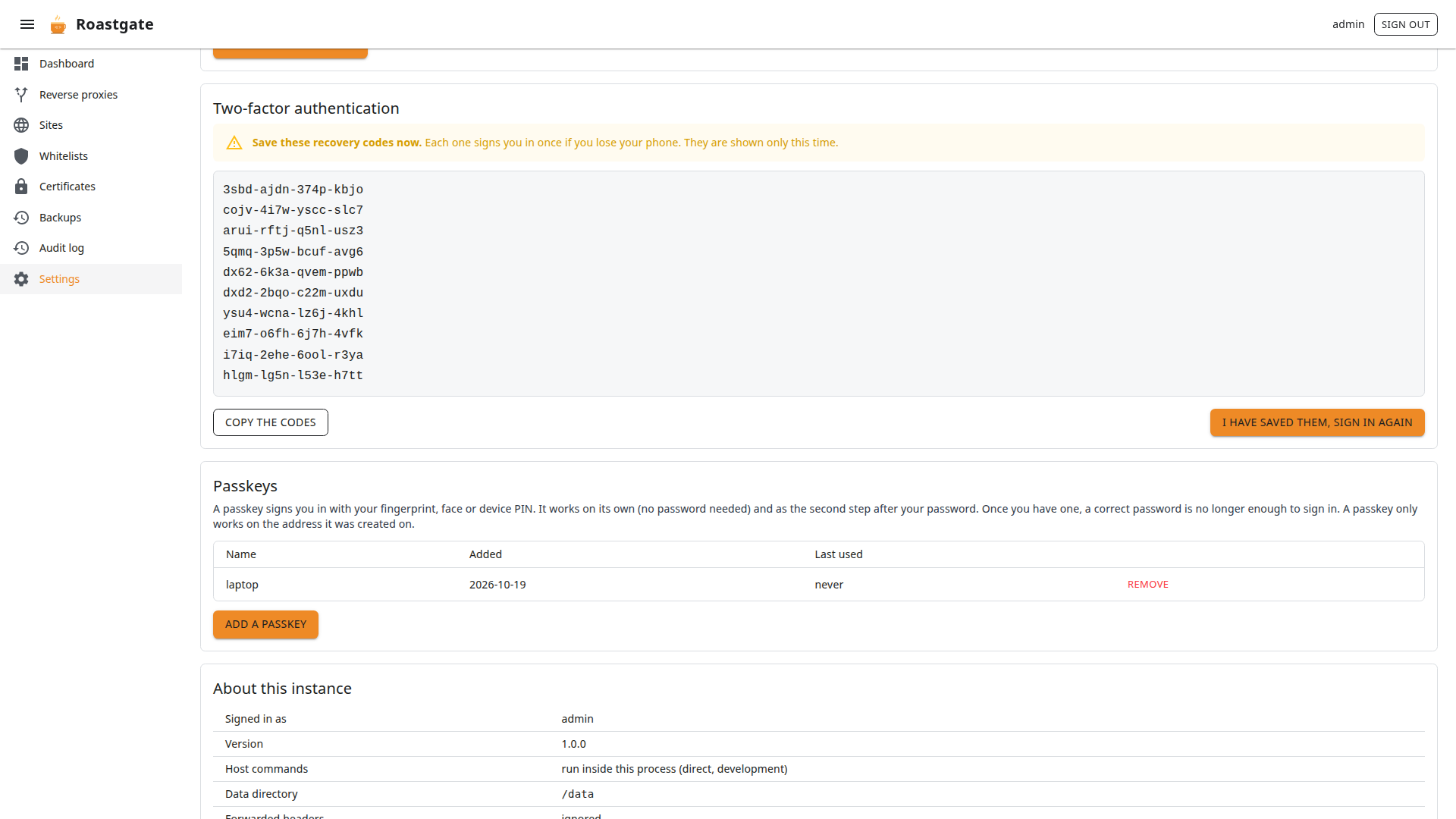
Sign-in then has two steps: the code is asked only after a correct password.
- A code can be used only once, and one step of clock drift (30 s) is tolerated.
- Five wrong codes end the attempt, and the client address is locked out after five failures.
- Get new recovery codes replaces the old ones (confirm with a code from the app).
- Turn it off needs your password and a code (or a recovery code).
Turning two-factor on or off ends every session, this one included: you sign in again with the new step.
Passkeys
A passkey signs you in with a fingerprint, your face, a device PIN or a security key. In Settings → Passkeys, click Add a passkey, give it a name (laptop, phone…), confirm with your password and follow your browser.
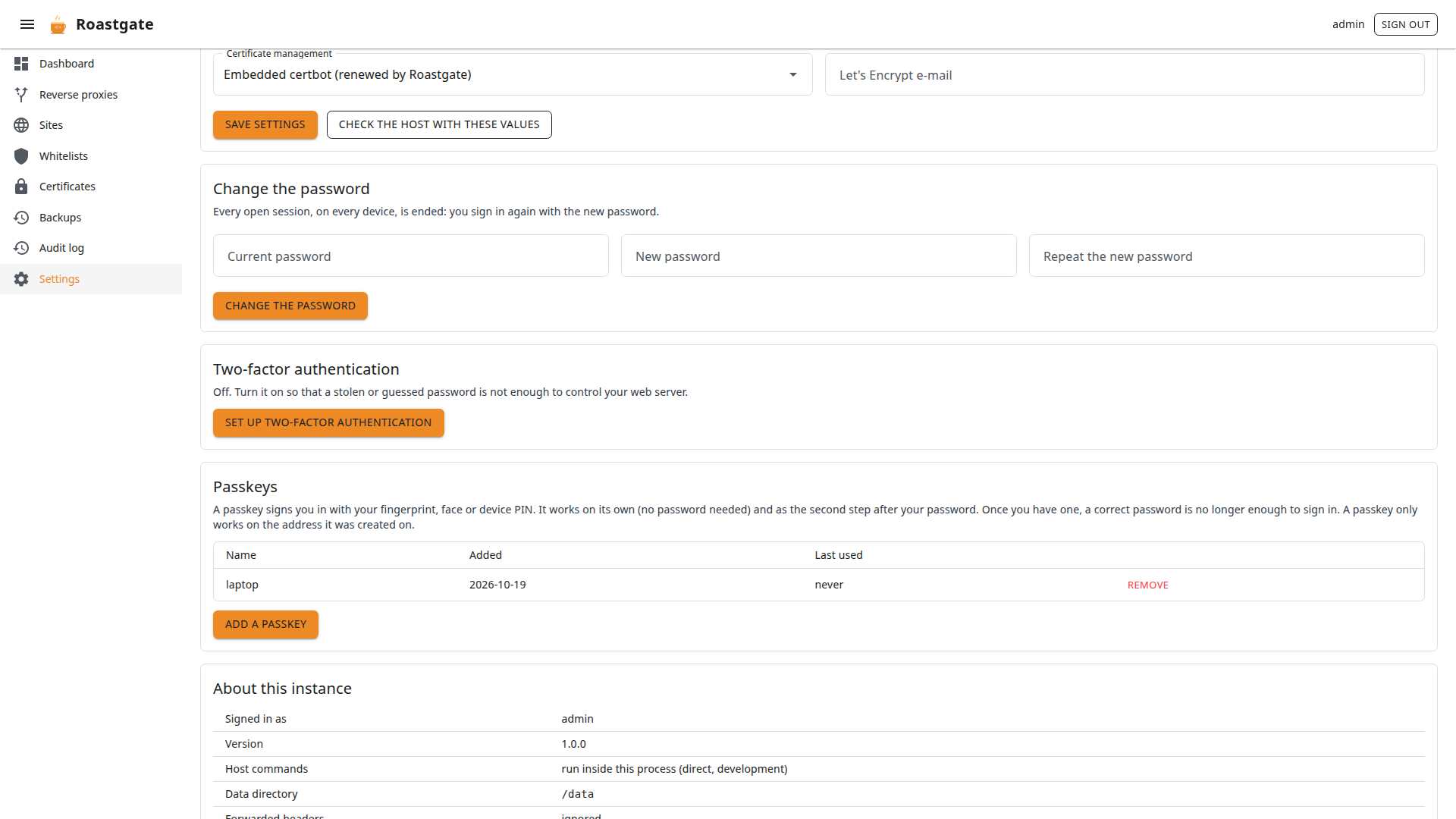
A passkey works in two ways:
- On its own: click Sign in with a passkey on the sign-in page, no password needed.
- As the second step, after the password, in place of the authentication code.
After the password, Roastgate always asks for a passkey (or a code, if two-factor is on).
- A passkey only works on the address it was created on:
127.0.0.1, or the domain of your HTTPS server block. Browsers only allow passkeys onlocalhost/127.0.0.1or over HTTPS, so a plainhttp://domain does not work. - The list shows when each passkey was added and last used.
- Remove asks for your password and ends every open session.
Lost your phone, the recovery codes and the passkeys? See Locked out of two-factor.
Reach Roastgate through nginx
By default Roastgate is only reachable through an SSH tunnel. To open it in a browser without one, put it behind your nginx — with Roastgate itself:
- Create a whitelist with your own addresses.
- Create a reverse proxy, for example
roastgate.example.com:- Forward to:
http://127.0.0.1:8181 - Support WebSockets: on (the interface needs them)
- Access: tick your whitelist
- Let the Let's Encrypt validation through: on
- Forward to:
- Get a certificate for the domain, then reopen the proxy and turn on HTTPS and Redirect HTTP to HTTPS.
- In
docker-compose.yml, enable both variables and restart withdocker compose up -d:
    environment:
      ROASTGATE_SECURE_COOKIES: "true"
      ROASTGATE_TRUST_FORWARDED_HEADERS: "true"
Keep the port mapping on 127.0.0.1:8181: then only your nginx can send the forwarded headers, and the sign-in throttle and whitelists see your real address.
Never enable ROASTGATE_TRUST_FORWARDED_HEADERS if port 8181 can be reached directly by others: they could fake their address.
Sessions and data
- The session cookie is
HttpOnlyandSameSite=Strict, andSecurewithROASTGATE_SECURE_COOKIES=true. - Open browser tabs are rechecked every 30 seconds, so an ended session stops quickly.
- The
/datavolume holds the database and the keys that encrypt session cookies. On Linux these keys are stored unencrypted: keep the volume readable by root only.
Reporting a vulnerability
Do not open a public issue. Report it privately through GitHub's private vulnerability reporting, as described in the security policy.