First start
The setup wizard
The first visit to Roastgate opens /setup. It has five steps.
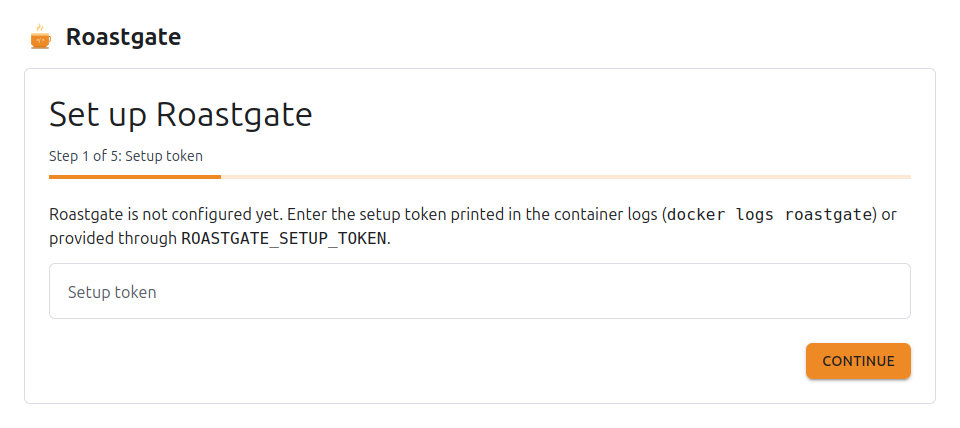
1. Setup token
Enter the token printed by docker logs roastgate (or the one you set in ROASTGATE_SETUP_TOKEN). It proves that you have access to the server.
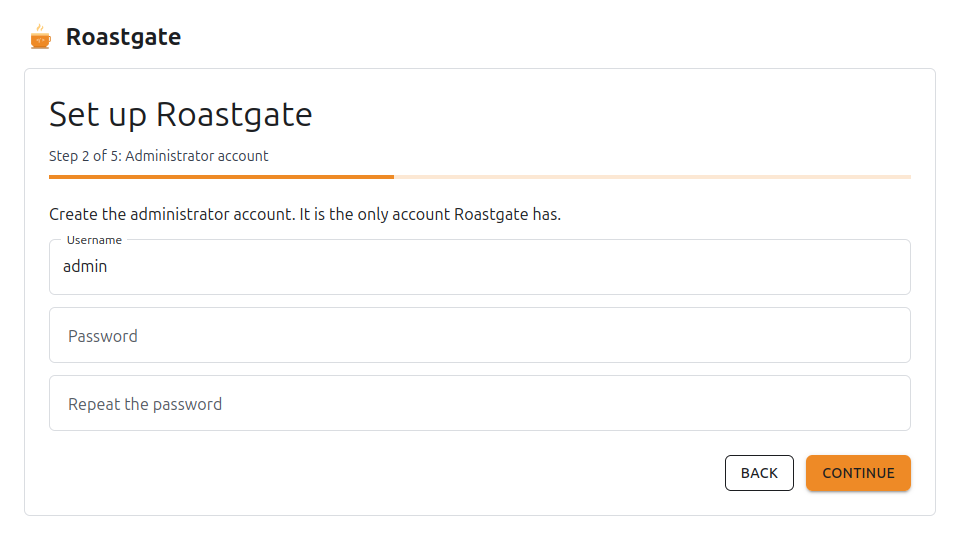
2. Administrator account
Create the administrator: it is the only account Roastgate has.
- Username: 3 to 32 characters, lowercase letters, digits, dots, hyphens or underscores.
- Password: at least 12 characters, with at least 3 of: lowercase letters, uppercase letters, digits, symbols. A passphrase of 20 characters or more needs no mix. It must not contain the username or be too repetitive.
The problems are listed below the field while you type.
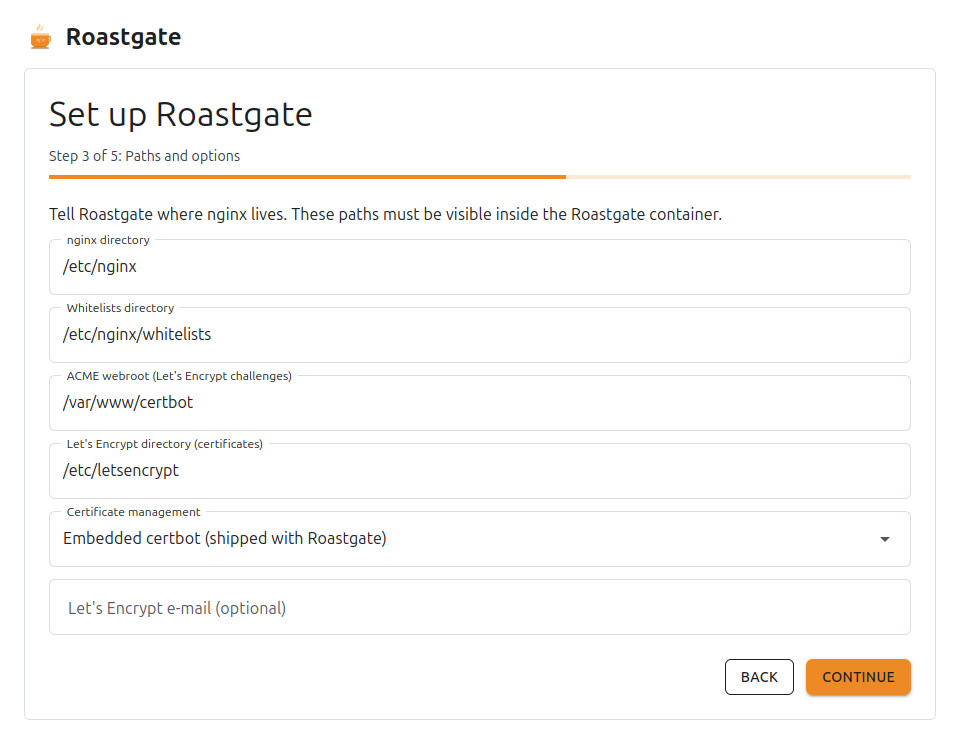
3. Paths and options
Tell Roastgate where nginx lives. These are the paths inside the container: with the provided compose file, they are the same as on the host.
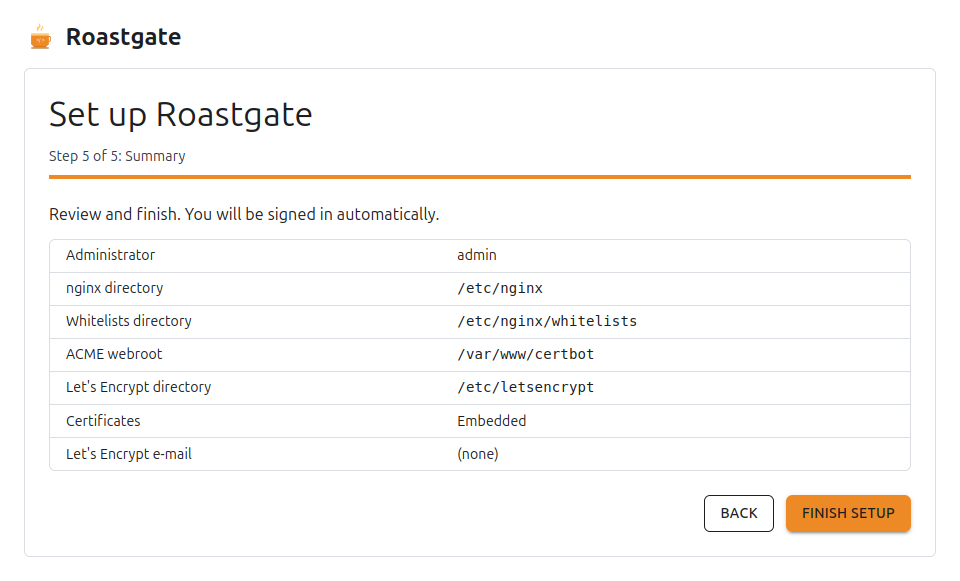
| Field | Default |
|---|---|
| nginx directory | /etc/nginx |
| Whitelists directory | /etc/nginx/whitelists |
| ACME webroot (Let's Encrypt challenges) | /var/www/certbot |
| Let's Encrypt directory (certificates) | /etc/letsencrypt |
| Certificate management | Embedded certbot |
| Let's Encrypt e-mail (optional) | none |
Certificate management has three choices:
- Embedded certbot: the one shipped with Roastgate. Roastgate renews the certificates itself, twice a day.
- certbot installed on the host: Roastgate drives it, and the host's own certbot timer renews the certificates.
- Do not manage certificates: Roastgate only lists the certificates it finds.
If certbot is already installed on the host and renews your certificates, pick certbot installed on the host. Never let both renew at the same time.
4. Host diagnostics
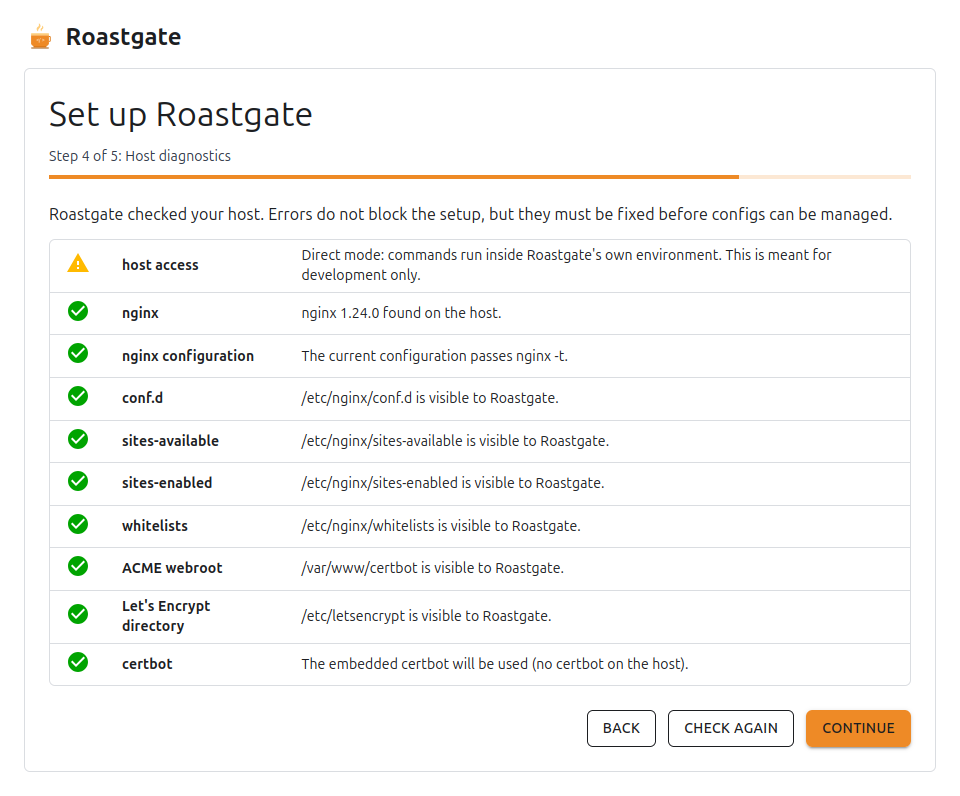
Roastgate checks the host with the values you entered:
| Check | What it means |
|---|---|
| host access | commands can run in the host namespaces (needs privileged: true and pid: host) |
| nginx | nginx was found, and its version |
| nginx configuration | the current configuration passes nginx -t |
| conf.d, sites-available, sites-enabled | the directories are visible to Roastgate |
| whitelists | the whitelists directory exists (created with the first whitelist otherwise) |
| ACME webroot | the webroot exists (certificates cannot be issued without it) |
| Let's Encrypt directory | the certificates directory is visible |
| certbot | the certificate mode can work, and warns if two certbots could renew at once |
Errors do not block the setup, but they must be fixed before configs can be managed. Fix the compose file or the paths, then Check again.
5. Finish
Review the summary and click Finish setup. You are signed in automatically, and /setup no longer exists.
Signing in
Sign in with your username and password, or with a passkey. When two-factor authentication or a passkey is set up, a second step asks for a code or the passkey.
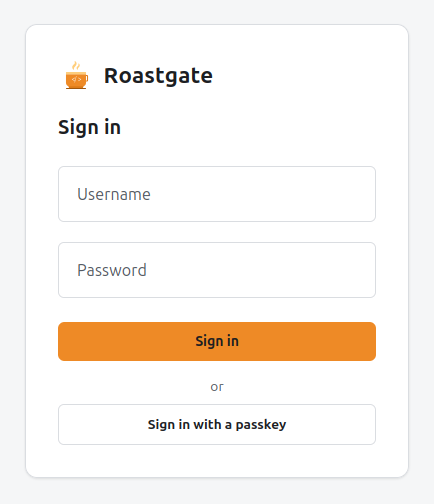
Sign-in is rate limited: after 5 failures in 15 minutes, the client address is locked out for a while. Every sign-in and failure is written to the audit log.
The dashboard
The dashboard shows whether nginx is reachable, and its version. Three buttons act on nginx directly:
- Check again: probes nginx again.
- Test configuration: runs
nginx -tand shows its output. - Reload nginx: reloads nginx (after a successful
nginx -t).
The Runtime card shows how host commands are run (Nsenter in production, Direct in a development or test container) and where the data lives.
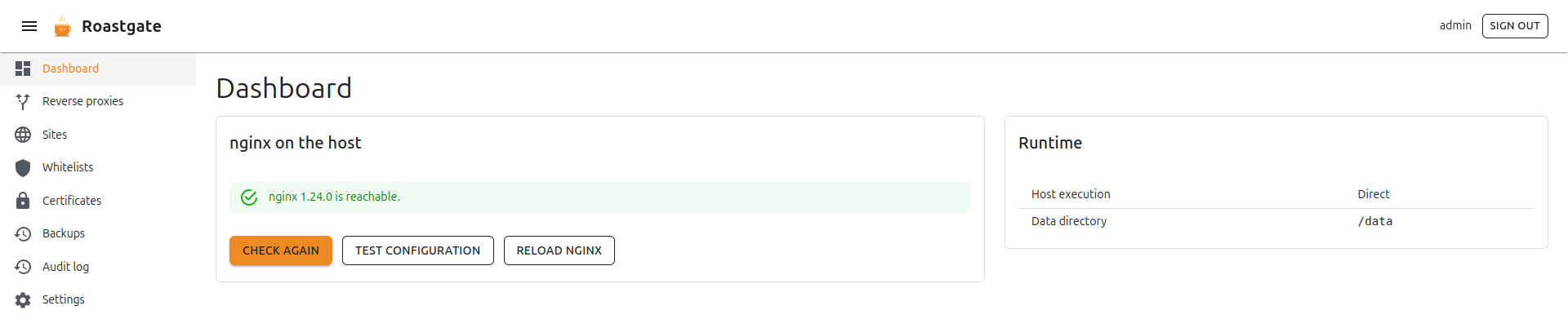
The menu on the left leads to every area: Reverse proxies, Sites, Whitelists, Certificates, Backups, Audit log and Settings.